Skip to main
University-wide Navigation

How to Display Input History in a Text Field

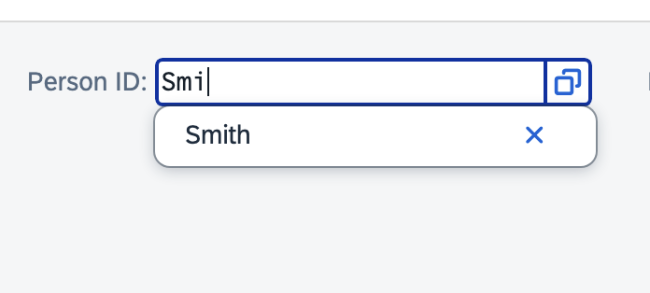
For individual input fields (not inside a table):

  1. Place your cursor in the field.
  2. Ensure the field is blank.
  3. Press the Down Arrow (↓) key or begin entering text.
  4. A list of previously entered values will appear.
  5. Use the arrow keys to select the desired value.
  6. Press Enter or Tab to populate the field.
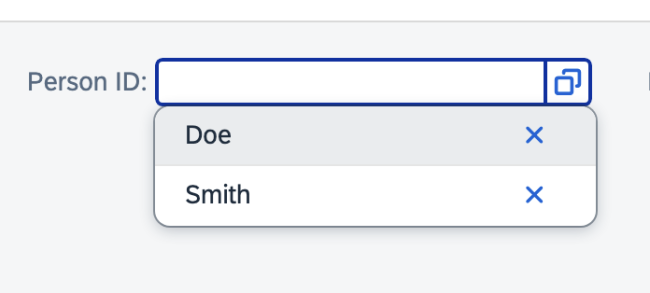
Input fields
Input Fields 2


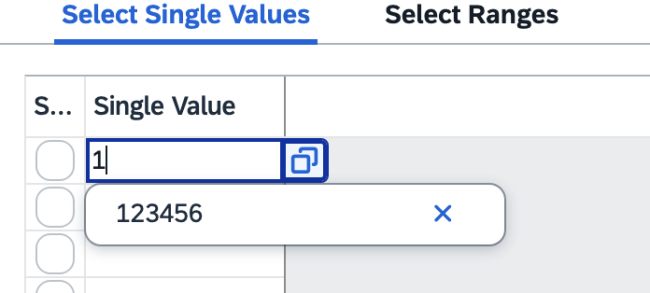
How to Display Input History in Table Fields

For input fields located within a table or grid:

  1. Place your cursor in the blank table cell.
  2. Press the Spacebar or begin entering text.
  3. The input history list will appear.
  4. Use the arrow keys to select a value.
  5. Press Enter or Tab to select it.
table fields