
Use the resources below to begin effectively working in SAP S/4.
SAP Resources
Welcome to the SAP S/4 Resource Hub
Whether you're getting started with SAP S/4 or looking for quick answers, this site is your central source for support. Explore training materials, step-by-step guides, FAQs, and helpful resources designed to help you navigate new processes, complete everyday tasks, and make the most of SAP S/4. Use the information here to learn, troubleshoot, and stay informed throughout the transition and beyond.
NOTE: Some pages or links may require logging in with your UK linkblue account.
Need technical assistance or need to report an issue in SAP?
Call 218-HELP (4357)
Resources for functional areas:
Visit the pages below for resources specific to functional areas and roles in SAP.
SAP S/4: Getting Started
Important Updates SAP Access Request Process
After a successful launch of SAP S/4, UK Information Technology Services (UK ITS) would like to update the UK community on changes impacting requesting access to SAP and required training. These changes will be in effect until December 2026 as a trial period.
Effective immediately, completion of SAP Training Web-Based Training (WBT) courses are no longer required before SAP access can be granted. Compliance courses and policy acknowledgments will remain a requirement for SAP access.
How to access SAP S/4
SAP S/4 is accessed by visiting myuk.uky.edu and launching the SAP Fiori Launchpad.
How to access SAP S/4 in the myUK portal
For inquires about permissions or access to certain applications within SAP S/4, reach out via our Project RISE Feedback Form.
Finding transactions and t-codes using search
SAP S/4 makes it easy to find applications, transactions, and transaction codes (T-codes) using the universal search feature. The search feature can be found at the top of the SAP Fiori Launchpad, indicated by a magnifying glass icon.
Search by Transaction Name
- Enter a keyword related to the task you want to perform (for example, purchase order, journal entry, or vendor).
- Review the search results and select the appropriate application or transaction.
Search by Transaction Code (T-Code)
- Enter the T-code (e.g., ME23N, FB03, or VA03).
- SAP will display matching applications or transactions associated with that code.
- Select the result to open the application.
Tips for Better Search Results
- Use specific keywords related to your task.
- If you know the legacy SAP (ECC) transaction code, enter it directly to see whether an equivalent SAP S/4 application is available or review our SAP Legacy to S/4 Crosswalk.
- Add frequently used applications to your Favorites for quicker access in the future.
- Search results are based on your assigned security roles, so you will only see applications you are authorized to use.
Adding favorites in SAP S/4
It is highly recommended to save commonly used applications to your Favorites for quick access on your SAP Fiori Launchpad homepage and reduce the need for repeated searches.
Improving the Accessibility of SAP S/4
You may want to change the appearance of SAP to change the aesthetic quality of the user interface or improve accessibility with one of the high contrast color schemes.
Saving Views (Previously Layouts)
Some user interface elements, like filter bars and certain tables, allow you to do personal settings and save these as a view. If you do so, you can later re-apply the same settings just by selecting the view.
Finding transactions or t-codes used in SAP ECC
Some transactions and t-codes previously used in legacy SAP ECC can be completed by using different t-codes in SAP S/4. Visit the SAP Legacy to S/4 Crosswalk page to see what the t-code is for application you are looking for in SAP S/4.
Running jobs in the background and exporting jobs
Transactions expected to run longer than 10 minutes should be executed in the background to improve system performance and reliability. Background processing prevents timeouts, reduces the impact on system resources for other users, and allows you to continue working while the job runs. Once complete, you can review the results without having to remain connected to the transaction.
This may be a change to user experience in legacy SAP when completing jobs or transactions on screen. Continuing this practice may result in transaction or job time outs.
Saving PDFs or Printing
To print from SAP S/4, it is recommended to first save the content as a PDF and then print to your local machine.
Business Areas vs Profit Centers
Business Areas from legacy SAP have been replaced with Profit Centers in SAP S/4. Additionally, some Business Areas have been combined into one Profit Center.
In-App Guided Content, Action Bar, Menu
In SAP S/4, you will find some applications have in-app guided content and smart tips powered by WalkMe. While in SAP, you will notice a question mark button at the bottom of your window.

Click it and you will open the WalkMe Menu.
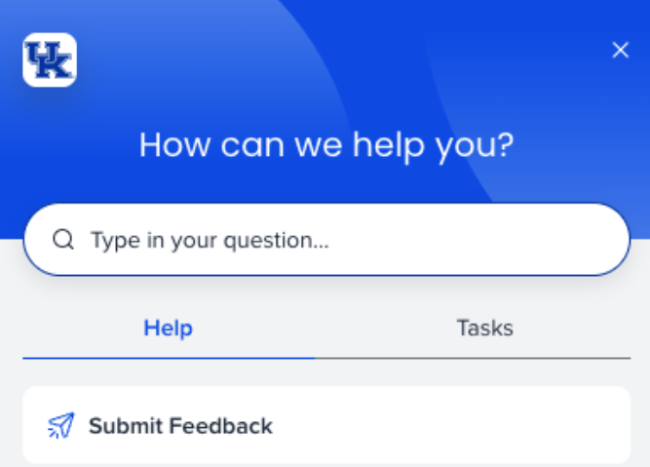
The Menu can provide extra resources to you, depending on where you are in SAP.

The Action bar (pictured above) will include content that is available to you that will guide you through a process or action. You can click and drag to move this action bar to a new location on your window at any time.
Tips & Tricks
Opening more than one session
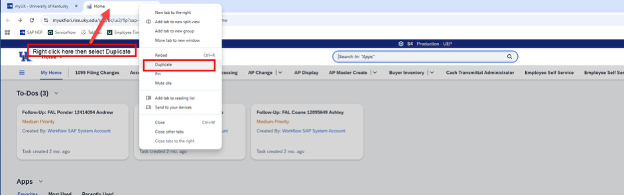
You can open more than one session in SAP S/4 by right clicking in your browser tab and clicking "Duplicate".
What is Input History?
Input History is a productivity feature in SAP Fiori Web GUI within the SAP S/4 Fiori Launchpad that remembers previously entered values in text fields. It allows users to quickly reuse frequently entered values without retyping them.
How to Display Input History in a Text Field and Table Field
FAQs
Where do I go if I need more help?
If you have further training needs, please reach out via the ITS Customer Services Assistance Request Form and we will get back to you.
Why can't I find SAP GUI?
Work previously done in SAP GUI or legacy SAP ECC will now be done in SAP S/4 via the SAP Fiori Launchpad. SAP Fiori Launchpad can be opened in your web browser and brings many enhanced features. See the Project RISE website for more.
I can't find the application I use for work. Where do I look?
If you are unable to find the application or t-code you previously used in SAP ECC, try one of the below steps.
- Use the Search bar at the top of the SAP Fiori Launchpad and search by:
- Application name
- Business process (for example, "Purchase Orders" or "Travel Expenses")
- Transaction code (T-code), if known
- Check the SAP Legacy to S/4 Crosswalk page for a quick reference on t-code names in SAP S/4.
- Ask a colleague or supervisor if the application has been replaced with a new SAP Fiori app or if there is a new process for completing the task.
- Verify your access. SAP S/4 applications are role-based, so if an app is not appearing, you may not have the required security role assigned. Ask a colleague with the same SAP access or role if they can find the transaction.
- Put in a ticket. If you are still unable to find what you are looking for, put in a ticket via the ITS Customer Services Assistance Request Form and someone will follow up with you.
I am missing variants and layouts. What do I do?
Not all variants and layouts were migrated to SAP S/4 or may need to be re-generated. If you do not see the one you usually use, please re-create.
For layouts, see Saving Views (Previously Layouts).
If the variant is there, but is not functioning, please put in a ticket via the ITS Customer Services Assistance Request Form.
What should I do if I get, "You are not authorized to use transaction..."?
If you get an error that looks like this:

Follow the steps below to properly report the issue for technical troubleshooting.
Reporting Authorization Issues in SAP Fiori Launchpad
Why am I getting no output from my transaction?
If you have verified all the criteria and access level is correct for a transaction, and you are still getting no output. Try pressing F5 to refresh the transaction or clicking the Refresh/Go button where applicable.
I have questions about the in-app guidance or resources. Who do I ask?
Please fill out via the ITS Customer Services Assistance Request Form.
We have departmental training for SAP systems. How do I get it on this website?
Please reach out via the ITS Customer Services Assistance Request Form and the team will get back to you.